Offsite data backup answers a question that most backup plans never ask. What happens when a disaster takes the original and the backup in the same moment? A fire, a flood, a burglary, or a ransomware infection does not respect the line between your computer and the drive sitting beside it. If every copy lives under one roof, one bad day can erase all of them.
Many households believe they are covered. A drive sits next to the computer, or photos sync to a phone. Those habits help, but they share a weakness. They sit close to the thing they protect, so the same event can reach both. Distance is the missing ingredient, and it costs far less than the files it saves.
This guide explains what an offsite copy does, how far away it should be, and which methods work without locking you into a bill. We also cover encryption, protection from ransomware, schedules, and restore tests, because a copy you cannot recover is only a hopeful gesture. Nothing here depends on one brand, so the advice holds up as products change.
What Offsite Data Backup Really Protects
Offsite data backup means keeping a copy of your files in a different physical location from the original and from your other backups. That location can be a relative’s house, an office, a safe deposit box, or a data center run by a cloud provider. The point is separation. A copy that lives somewhere else cannot be damaged by whatever happens to the first location. Think of it as insurance that pays out only when the worst happens, which is exactly why it feels optional until the day it matters.
The Backblaze 3-2-1 guide describes the standard approach as three copies of your data on two different media with one copy offsite. It says the offsite copy protects against disasters such as fires and natural disasters. Because local copies can be lost together, a separate location removes the single point of failure that many home setups share.
Offsite data backup covers more than disasters. Theft takes everything in a room, including the backup drive sitting beside the computer. Ransomware, which encrypts files and demands payment, targets anything the infected computer can reach. A copy in another place, disconnected from your daily network, sits outside every one of those paths. That is why it earns its place in the plan. Even a single encrypted drive stored elsewhere meets the core idea. Fancier setups only add convenience.
Why the Same Room Fails Every Time
The most common backup mistake is also the easiest to make. A person buys an external drive, runs a backup, and leaves the drive plugged in beside the computer. That arrangement protects against a failed hard drive, which is a real risk, but it does nothing for a fire, a flood, or a break-in. Everything that matters sits within arm’s reach of the same disaster. People rarely plan for those events, so the gap stays hidden for years. The drive keeps humming and the backup keeps running, and everything looks healthy right up to the moment it is not. Offsite data backup closes that gap before the day it matters.
Always connected drives carry a second problem. The CISA ransomware guide says ransomware often tries to delete or encrypt backups that it can reach. For that reason, it advises maintaining offline, encrypted backups of critical data. A drive that stays plugged in is reachable by definition. A backup that updates itself every night feels safe, yet that same automation gives malware a steady path to the copy. An offsite data backup solves both problems at once, because the copy lives somewhere you can only reach on purpose.
How Far Away Is Far Enough
Backblaze says the offsite copy should ideally sit more than a few miles from your other copies, and it gives no exact distance. That wording makes sense, because the goal is to put the copy outside the reach of a single event. Think in terms of events. Ask what one event could reach both locations, then move the copy until you cannot name one. A copy in the garage fails the test. Across town, a friend’s house passes it for fires and burglary. A copy in another region also covers widespread events such as storms.
Convenience pulls in the opposite direction, because a distant copy takes more effort to update. Choose the farthest location you will actually visit on schedule. A relative’s home, a workplace desk, or a safe deposit box all work, as long as the location is secure and access is reliable. Write down the address and a contact person too, since a drive nobody can find in an emergency is no better than no drive. A careful offsite data backup plan treats location as part of the design. Pair each visit with a quick check, so every trip does double duty. Pair that choice with the local setup described in our independent storage guide. The offsite copy works best as the final piece of a larger plan.
Offsite Data Backup Methods Compared
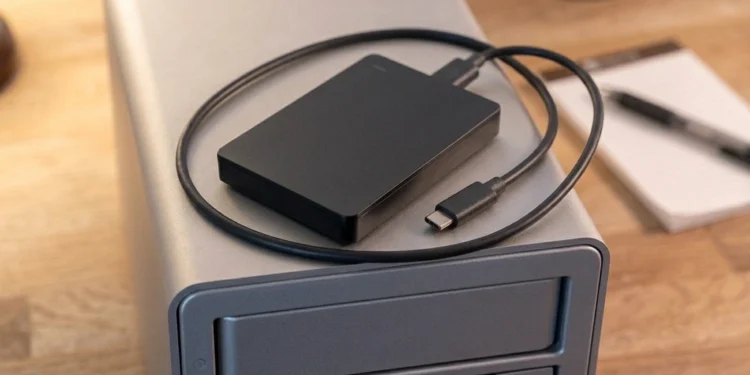
Three methods cover most households. The first is a rotated drive, which is an external drive you update at home and then carry to another location. It costs only the price of the drive and some discipline. The second is a storage unit at another site that receives copies over the internet. The third is a cloud backup service, which Backblaze counts as a valid offsite copy because the provider holds the data in its own facilities.
Each method trades money for effort. A rotated drive costs the least up front and asks the most of you, because you must remember the trip. A second unit automates the transfer but needs hardware, a willing host, and an internet connection at both ends. Cloud services remove the hardware and the travel. They also bring a recurring fee and place your data on someone else’s servers, which is exactly the dependence many readers want to avoid.
Many people combine offsite data backup methods. A rotated drive can serve as the offline copy, while a cloud or second site copy handles automatic updates. Because Backblaze calls the 3-2-1 rule a starting point rather than a complete solution, layering two offsite methods gives you a fallback if one fails. Pick the approach that matches your budget, your trust in providers, and how much routine you will honestly maintain. The best method is the one you will still be using in two years.
Encrypting What Leaves the Building
An offsite copy leaves your control, so encryption is not optional. A drive in a relative’s closet can be lost, stolen, or opened by a curious visitor. Encryption makes the contents unreadable without the key, so whoever holds the drive learns nothing. Turn it on before the first backup, not after, so no unencrypted version ever exists outside your home. Full disk encryption on the drive handles this at the operating system level. Backup software can also encrypt files before they leave the computer. Either route works, as long as the data is protected before it travels.
The US Chamber 3-2-1 guide advises choosing cloud services with automatic encryption at rest and in transit. It also notes that some vendors offer private keys you control. Encryption at rest protects stored data, while encryption in transit protects data moving across the internet. A second site for offsite data backup should use both, and so should any service you hire. Check the settings yourself instead of trusting a marketing page.
Guard the key as carefully as the drive. Store the password or recovery phrase in a password manager, and keep a second copy in a place separate from the backup. A lost key turns a perfect offsite data backup into unreadable data, which is the same as no backup at all. Consider printing the recovery phrase and sealing it in an envelope kept with your important papers. Our everyday data protection habits guide covers password storage and account safety in more detail.
Keeping an Offline Copy Out of Reach
CISA advises maintaining offline, encrypted backups of critical data and testing backup procedures on a regular basis. Offline means the copy is not connected to any computer or network while it sits idle. A drive in a drawer cannot be encrypted by malware. Disconnecting is a habit, not a gadget. Plug the drive in, run the backup, verify it, and unplug it again. Put it away before you do anything else on the computer. This is how offsite data backup stays out of malware’s reach. Offline copies also protect against honest mistakes. A deleted folder that never reached the unplugged drive can still be recovered from it. A cloud copy can gain similar protection through delete protection or object lock, which CISA recommends enabling on storage that ransomware commonly targets.
The US Chamber guide adds the idea of an immutable copy, one that cannot be changed or deleted until a retention window ends. It lists a cloud copy with object lock or an offline, air gapped copy as acceptable forms. CISA cautions that immutable storage needs care, since misconfiguration can be costly. For most homes, the simplest immutable copy is a rotated drive that spends nearly all its time unplugged. Cloud copies deserve the same thought. Protect the account with a strong password and two factor authentication, because a hijacked account can delete what the provider stores.
Offsite Data Backup Schedules That Stick
A plan fails when the schedule is vague. Decide how often the offsite copy updates. Then attach that date to something you already do, such as the first weekend of the month or a regular visit to the relative who holds the drive. Automatic methods remove the decision entirely, which is their biggest strength. Manual methods need a calendar reminder and a firm habit. Match the frequency to how much work you can stand to lose. Someone who edits files daily needs a different rhythm than someone who stores finished photos. If losing a month of changes would hurt, update monthly at minimum. If a week would hurt, update weekly and consider an automatic method.
Retention matters alongside frequency in any offsite data backup plan. The US Chamber guide notes that malware can stay hidden for weeks, so a 30 day history may be too short. It suggests 90 days or more. Keep older versions of your files so you can roll back past a corruption that nobody noticed. With a rotated drive, alternate between two drives so one always holds an older state. Label each drive with its last update date so there is never any guessing. Test the schedule against reality. If the last three updates slipped by a month each, the plan is too ambitious, so simplify it until it survives a busy season.
Testing Restores Before Disaster Arrives
A backup you have never restored is only a hope. The US Chamber guide recommends restore drills roughly every three months. CISA says to test the availability and integrity of backups in a disaster recovery scenario. Both sources point to the same habit. Prove that the files come back, in a usable state, before you need them. Treat a failed drill as good news, since it exposes the problem while the original files still exist. That proof is what separates offsite data backup from wishful thinking.
Make the drill small and regular. Pick a random folder, restore it to a different location, and open a few files to confirm they work. Then try a harder test once a year, which means restoring a larger set of data as though your main computer had failed. Note how long it takes, because a restore that takes three days changes your plans for a real emergency. Record each drill in a simple log with the date, what you restored, and what went wrong. Fix the problems you find, then run the drill again.
Check the offsite copy specifically, since it is the one you see least. Bring the rotated drive home, or log into the remote unit, and confirm that the latest files and the older versions are both present. Verify that the encryption key opens the data, too. These checks take an hour at most, and they decide whether the plan works on the worst day.
Making Offsite Data Backup a Habit
Offsite data backup works when it becomes part of ordinary life rather than a project. Write down where each copy lives, how it is encrypted, who holds the key, and when it updates. Keep that page somewhere you can reach during an emergency, because stress erases memory fast. A plan on paper survives the moments when you cannot think clearly. Share the location of the written plan with one trusted person, so the information does not live in a single head.
Review the plan once a year. Drives age, relatives move, subscriptions change, and data grows. A review catches the quiet failures, such as a full drive that stopped updating months ago or a remote unit that lost its connection. Replace aging drives on a schedule instead of waiting for them to fail, and update the written plan each time something changes. Small habits like these keep the system honest. Put the annual review next to a date you already remember, such as a tax deadline or the start of a new year.
Start with the smallest version that works. Buy one encrypted drive, copy your most important files, and place it at another location this week. Then add automation, a second method, and restore drills as your confidence grows. A simple offsite data backup that exists beats a perfect plan that stays on the to-do list. Your files stay protected long after the first disaster passes.