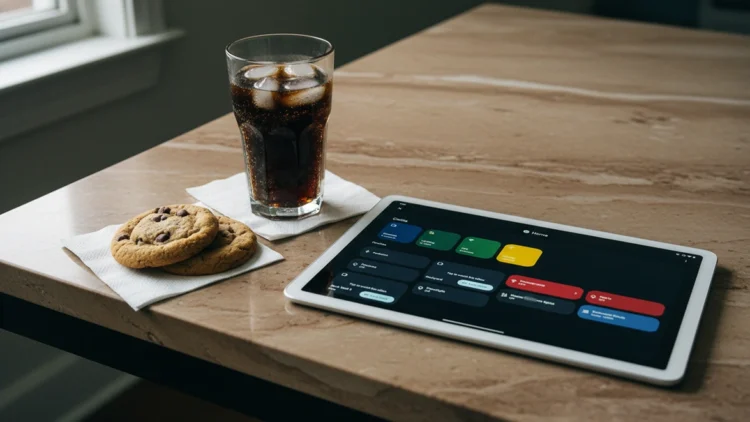
Most homes have an old tablet sitting in a drawer, forgotten after the last upgrade. It may feel too slow for new games, yet its screen still works perfectly well. Manufacturers count on owners writing that hardware off the moment a newer model arrives. That habit costs real money, because replacing working hardware is rarely necessary.
This guide covers practical jobs an aging tablet can still handle around the house. Each use relies on free tools or one-time purchases, not monthly subscriptions. Some uses need a newer tablet, so each section notes what older models can manage. By the end, that forgotten device should have a clear job waiting for it.
Old Tablet Value That Manufacturers Ignore
A tablet that struggles with modern apps still has a sharp, bright touchscreen. It also has working Wi-Fi, speakers, and a battery that can ride through short outages. Those parts are exactly what a dedicated display, frame, or controller needs to work. Single jobs ask far less of the processor than the apps that slowed it down.
Throwing that hardware away also adds to a growing global problem. Figures from the UN e-waste report show a record 62 million tonnes of electronic waste in 2022. That total rose 82 percent from 2010 and could reach 82 million tonnes by 2030. Only 22.3 percent of that waste was documented as properly collected and recycled.
Keeping an old tablet in service is one small way to stay out of that pile. It also saves the cost of buying a separate gadget for each job around the house. A frame, a kitchen display, and a camera monitor can all live on one screen. Before choosing a job, though, it helps to know what the tablet can still run.
Check Your Old Tablet Before You Repurpose It
Start by checking which operating system version the tablet can still install. Apps set minimum versions, so very old tablets slowly lose access to popular services. For example, YouTube requires iPadOS 16 or later, while Zoom needs iPadOS 15 or later. iPadOS 26 itself runs on the iPad 8th generation and newer, along with the iPad Air 3rd generation. A tablet that cannot meet those minimums is better suited to simpler, offline jobs.
Security updates matter even more than new features for any device on your network. As of May 2026, Apple was still patching iPadOS 15, which reaches back to the 2014 iPad Air 2. Once a tablet stops receiving those fixes, it keeps working but gains no new protection. Keep unsupported tablets away from banking, email, and anything else holding your passwords. A photo frame or recipe screen carries far less risk than a personal account.
Battery health is the last check, especially for a tablet that will stay plugged in. Look closely for any bulge in the case, a lifted screen, or gaps along the seams. Those signs point to a swollen battery, which can become a fire hazard. A tablet showing any of them should not be charged or put back into service.
A Smart Home Control Screen on the Wall
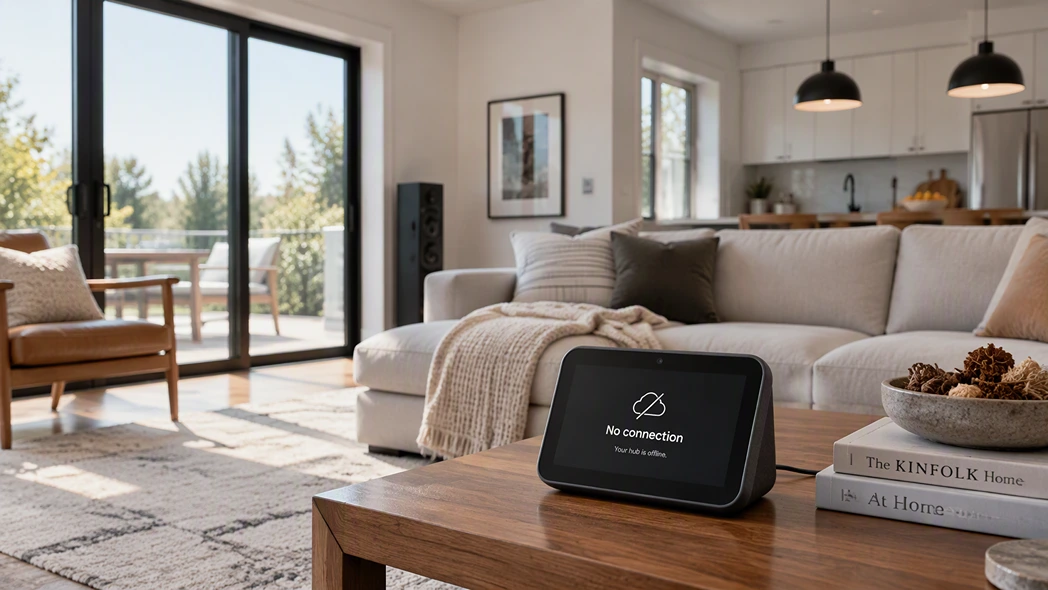
One of the most useful jobs turns the tablet into a wall-mounted smart home panel. Home Assistant runs on a small hub and shows its dashboard in any modern browser. That means nearly any tablet with a current browser can control lights, thermostats, and locks. A wall mount or sturdy stand keeps the panel at eye level near the front door. Some devices still depend on outside servers, since Ring cameras connect through Ring’s cloud. The full setup, from choosing the hub to adding devices, appears in this smart home command center walkthrough.
Amazon Fire tablets offer a simpler path through a built-in feature called Show Mode. It turns a Fire HD 8 or Fire HD 10 into an Alexa display, much like an Echo Show. Asking Alexa to switch to Show Mode starts it, and a charging dock is optional. However, its touch controls for smart home devices are more limited than a real Echo Show.
Photo Frame and Kitchen Helper
A digital photo frame is the easiest job for an old tablet to take on. Many Android tablets include a screen saver that shows a Google Photos album while charging. You can pick the albums and adjust the slideshow speed, with no extra app required. On an iPad, the Photos app can also play an album as a slideshow.
In the kitchen, the same tablet becomes a recipe screen that stays awake while you cook. Paprika Recipe Manager costs $4.99 once on the iPad, with no subscription attached. It saves recipes from websites, keeps the screen on, and starts timers from cook times. Paprika also builds grocery lists and meal plans, which suit a tablet that lives on the counter. Each platform is a separate purchase, so Android and iPad versions are bought individually.
A Dedicated Security Camera Monitor
An old tablet on a shelf makes a handy always-on monitor for your security cameras. Instead of reaching for a phone, you can glance at the driveway or front door. The right app depends on your camera brand, and most brands publish their own. That built-in app is usually the simplest place to start, since setup is already done.
Reolink owners can use the free Reolink app, which shows up to 16 cameras at once. It plays live and recorded footage, and cloud plans are optional rather than required. The iPad version requires iPadOS 15.1 or later, which still covers the 2014 iPad Air 2. The app only supports Reolink hardware, so other brands need a different viewer. For camera hardware, our Reolink Panoramic 4K review explains how local storage avoids subscription fees.
Android tablets open the door to cameras from many brands through tinyCam Monitor. It works with most IP cameras that use the standard RTSP and ONVIF video streams. The free version shows ads, while the PRO version costs $3.99 as a one-time purchase. Upgrading to PRO also unlocks extras such as time-lapse recording and motion detection. Either way, viewing happens directly over your home network, without a monthly cloud fee.
Second Screen, E-Reader, and Music Remote
An older iPad can also extend a Mac desktop through Apple’s built-in Sidecar feature. Apple’s list covers the iPad 6th generation or later, iPad Air 3rd generation, and iPad mini 5th generation. Every iPad Pro model works too, though the Mac must meet its own requirements. Older iPads that miss the list can still serve as a second screen another way.
Spacedesk is free for personal use and turns a tablet into a second Windows display. Its viewer app runs on Android tablets, iPads, and Fire tablets connected to the same network. Android tablets can also connect over a USB cable for a steadier picture. Samsung Galaxy Tab owners can skip the extra app, since Second Screen is already built in. Either option gives a laptop more room for email, chats, or reference documents.
Reading is another natural fit, and Libby makes it free through your public library. The app has no subscription, no in-app purchases, and no late fees, only a library card. It runs on iPads with iOS 10 or later, Android 7.1 or later, and newer Fire tablets. Tablets too old for the app can still borrow books through the libbyapp.com website. A tablet near the stereo can also act as a dedicated remote for your speaker app.
Mounting and Power for Always-On Use
A tablet that stays on all day needs a few settings changed before it goes up. On an iPad, Guided Access locks the screen to a single app until you enter a passcode. You can set how quickly the display locks by following Apple’s Guided Access guide for each session. Guided Access also blocks the hardware buttons, so guests cannot wander into other apps. Android tablets can keep a dashboard open full screen, with the display timeout extended.
Constant charging is the bigger concern, because old batteries can swell when kept full for long periods. Many Samsung tablets include a Battery Protection setting that stops charging at 80 percent. Other tablets benefit from a smart plug on a schedule, which limits hours spent at full charge. If the case ever starts bulging, unplug it and review these swollen battery warning signs before going further. Never press on a swollen battery, puncture it, or throw it in the household trash.
Put That Drawer Tablet Back to Work
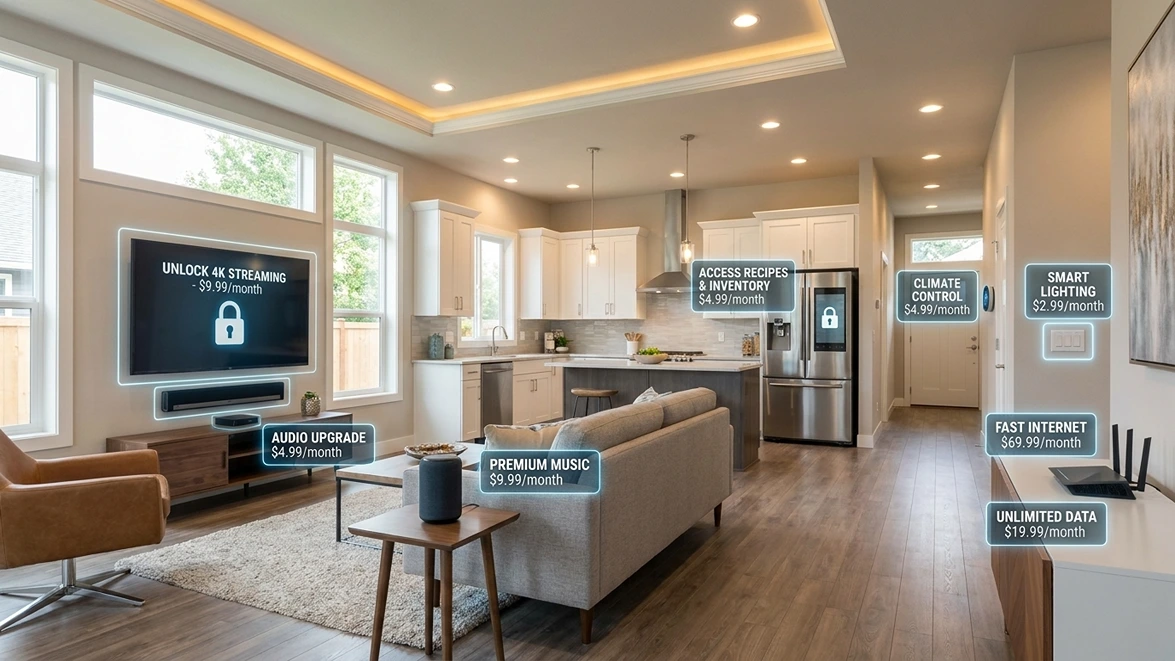
Every job in this guide runs on free tools or a single small purchase. That stands in sharp contrast to many new gadgets that lean on monthly service plans. The push toward recurring fees is spreading, as our look at subscription free alternatives shows in detail. New hardware also costs more than it used to, which makes reuse even smarter. Part of that increase comes from tech tariffs on hardware, which quietly raise prices on nearly every device.
Start with one job that matches the tablet’s age and the needs of your household. A photo frame suits almost any model, while a smart home panel needs a current browser. Check the battery, keep personal accounts off older models, and give it a permanent spot. Your old tablet still has years of useful work left, so let it earn them.