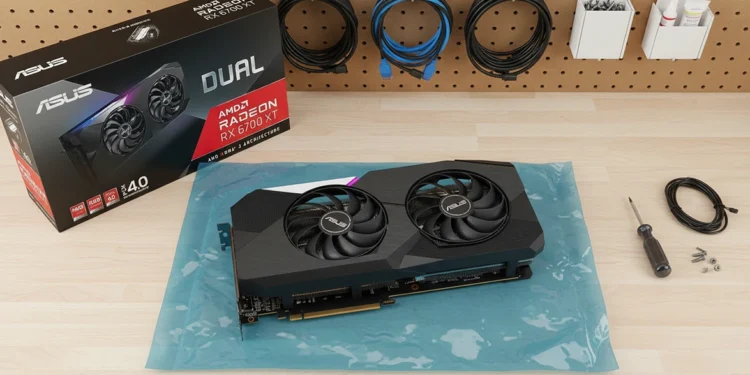
There is a particular kind of frustration that shows up with midrange GPUs a couple of years into a build. The card that once felt perfectly matched to 1440p suddenly feels “tired”: frame times spike, certain games hitch during heavy scenes, and you find yourself tabbing into settings more than actually playing. With the Radeon RX 6700 XT this feeling is common, but it is often a sign of an untuned system rather than a genuinely obsolete GPU. The silicon is still capable; the stack around it is simply not working in its favor.
This is where small, ignored switches start to matter. AMD’s software stack has grown over time, and a default install leaves a surprising amount of performance potential unused. The same is true for game presets that were selected casually months ago and never revisited as patches, drivers, and your own expectations changed, which is exactly the mindset challenged in guides like your GPU is more powerful than you think that walk through zero‑cost settings changes before you blame the hardware.
When 1440p starts to feel worse than it should
The pattern is recognizable: you launch a current title at 1440p, the built‑in preset defaults to “High” or “Ultra,” and the first few minutes feel fine. Then you hit dense foliage, city vistas, or chaotic combat and the frame times blow out. Input lag creeps in, the fans spike, and what should be a smooth 60–90 fps experience collapses into something that feels vaguely unstable. You might see the same thing when you alt‑tab back from a browser or streaming window and the game seems more inconsistent than it did at the last login.
In many of these scenarios, the RX 6700 XT is actually operating near its comfort zone, but the rest of the pipeline is undermining it. CPU spikes, background applications, unoptimized overlays, and unmanaged frame pacing all compound on top of game engines that assume hardware well beyond what you are running. Treating this as a signal to upgrade skips an important step: verifying that the card has truly been pushed near its reasonable limits for your target settings and frame rate, something that becomes clearer when you contrast it with how a RX 6700 XT 1440p review frames the card’s out‑of‑the‑box strengths.
Establishing a clean baseline instead of guessing
Before touching any of the more interesting Radeon features, a basic sanity check is essential. Pick one or two games that reliably feel rough at 1440p and run them with your current settings while watching GPU usage, CPU usage, VRAM allocation, and frame times in an overlay. If the GPU is rarely near full utilization when drops occur, the bottleneck may be CPU‑side or related to background workloads rather than the 6700 XT itself. If VRAM is pegged at or near capacity, that points in a different direction entirely.
At the same time, confirm the boring fundamentals. Make sure the system is on a current, stable AMD driver rather than a long‑neglected release that shipped with the card. Check that the Windows power plan is set to a balanced or high‑performance mode, not a restrictive laptop‑style plan carried over from an earlier configuration. Disable unnecessary capture software, secondary overlays, or monitoring tools that can quietly consume CPU time and VRAM without offering much value. Once this baseline is in place, a focused GPU tuning checklist starts doing real work instead of just papering over configuration problems.
The ignored switches in AMD Adrenalin
Once the basics are solid, the real leverage often sits inside AMD’s own Adrenalin software. Many systems run for months with all of the richer features left at their defaults, either because the owner never explored them or because they were configured once on a different game set and never revisited. For a 6700 XT at 1440p, three stand out—Radeon Anti‑Lag, Radeon Boost, and Radeon Chill—and they pair well with the broader ideas in a Radeon tuning guide you might already be using as a reference.
Radeon Anti‑Lag is designed to reduce input latency by adjusting how the CPU feeds work to the GPU, which can make fast shooters and action games feel more responsive. Radeon Boost works differently, dynamically dropping rendering resolution in motion to protect frame rates during rapid camera movement, where fine detail is harder to perceive anyway. Radeon Chill, in turn, caps frame rates during periods of low input to save power and thermals without affecting the feel of the game. If you prefer to see these options in action rather than just read about them, a walkthrough like “Settings you should change that you never thought to change | RX 6700 XT” neatly demonstrates the same concepts on live menus and gameplay, and it is a natural place to embed the video so the card’s behavior is visible as you read.
The key is to avoid turning everything on at once. Instead, enable a single feature, test a familiar scenario, and watch both frame pacing and subjective responsiveness. Thoughtful combinations of these features can make an RX 6700 XT feel significantly more composed under load without altering any core clock frequencies, especially when they are layered on top of the baseline adjustments you already made.
Smart Access Memory and platform synergy
Another underused tool in the AMD world is Smart Access Memory. On supported combinations of Ryzen CPUs and motherboards, this feature allows the processor to address the full VRAM pool on the GPU instead of working through a small fixed aperture. The practical effect is a reduction in specific kinds of CPU–GPU bottlenecks, which can show up as frequency drops, uneven utilization, or inconsistent frame times in demanding games.
Turning Smart Access Memory on is not particularly complex; it usually involves enabling the relevant options in system firmware and confirming the setting in Adrenalin. The reason it is often ignored is simpler: many systems ship with it disabled by default, and if the machine “works,” few people go hunting for additional toggles. For a 6700 XT at 1440p, though, the extra breathing room can be enough to smooth out borderline scenarios in open‑world or heavily streamed titles. It will not transform the card into a higher tier, but it can close gaps that feel inexplicable when everything else looks correct, especially if you have seen how the card behaves in side‑by‑side benchmarks against an RTX 3060 Ti tuning setup.
Undervolting for stability and sustained clocks
Performance tuning is often associated with overclocking, but under-volting can be just as powerful for a card like the RX 6700 XT. Many samples ship with more voltage than strictly necessary to hold their rated clocks under worst‑case conditions. By gently lowering that voltage and validating stability, you can reduce power draw and temperatures, which in turn can let the card maintain its boost frequency for longer stretches.
The process is straightforward but requires patience. Start with a modest voltage reduction in Adrenalin’s tuning panel and loop a demanding game or a consistent benchmark for an extended period. Watch for visual artifacts, crashes, or obvious instability. If the card behaves, another small reduction may be possible; if not, step back to the last known‑good setting. The end result is often a 6700 XT that runs cooler and quieter while delivering nearly identical or even slightly better performance because it avoids short‑term thermal or power‑related throttling during intense scenes, which becomes especially obvious if you have a comparable RTX 3060 Ti tuning profile on another system for reference.
Matching in‑game settings to what the card is good at
Game presets are designed for convenience, not for extracting the best possible balance on a specific GPU at a specific resolution. On a 6700 XT driving 1440p, the default “Ultra” or “Very High” settings often allocate too much budget to options that look impressive on a spec sheet but generate minimal real‑world visual improvement. Shadows, ambient occlusion, volumetric effects, and certain post‑processing layers can be particularly heavy, while texture resolution and overall geometric detail tend to matter more to perceived quality.
A more deliberate approach starts with a “High” or even “Medium” preset, followed by selectively raising the options that carry obvious visible weight. Texture quality is usually a good candidate if VRAM headroom allows it. Meanwhile, heavy shadows or extreme ambient occlusion modes can be trimmed back a step without meaningfully degrading the image. The goal is to build a profile where the RX 6700 XT spends more of its time delivering smooth, predictable frames and less time servicing expensive vanity options that only show up in static screenshots, in the same spirit as broader GPU tuning checklist pieces that remind you how much low‑impact visual fat is baked into modern presets.
Using FSR as a smart tool, not a last resort
AMD’s FidelityFX Super Resolution can be polarizing because its worst uses are very visible: low‑quality modes at high resolutions can look softer and noisier than anyone would accept. When used more conservatively, though, FSR can give the RX 6700 XT the extra headroom it needs at 1440p without making the image feel compromised. The trick is to avoid jumping straight to the most aggressive mode and to test specific scenes rather than relying on quick impressions in menus.
In practice, that means starting with a balanced or quality‑oriented preset and evaluating a repeatable sequence: a dense street, a forested area, or a busy firefight you know well. If the performance gains are small, stepping down one notch might be justified; if they are substantial, you can decide whether the visual tradeoff is acceptable. The important thing is that FSR becomes a precise adjustment tool in your pipeline, not a binary “on when desperate” toggle that ruins image quality because it was pushed too far. Watching how creators handle FSR in practical RX 6700 XT tuning videos can also give you a visual sense of where your own tolerance for tradeoffs sits.
Per‑game profiles instead of one global compromise
One of the easiest traps to fall into when tuning a GPU is trying to find a single global configuration that works for every game. Different engines respond very differently to Anti‑Lag, Boost, Chill, FSR, and in‑game option mixes. A profile that feels perfect in a competitive shooter might be overkill in a slower single‑player title, while the settings that keep an open‑world RPG smooth could unnecessarily compromise a lighter e‑sports game.
AMD’s software allows per‑game profiles, and using them is often the difference between “good enough” and “this feels dialed.” For each of your main titles, create a dedicated profile that stores its own combination of driver‑level tweaks, frame rate caps, and preferred FSR mode if applicable. That way, launching the game also launches the right behavior for your 6700 XT, instead of forcing you to live inside a lowest‑common‑denominator setup that never fully suits anything. Over time, this approach ends up looking a lot like a personalized per‑game GPU tuning playbook built around the exact titles you actually play.
Knowing when tuning has done its job
That is the moment to make a deliberate upgrade decision rather than an emotional one. Maybe your core titles have shifted toward the heaviest current releases, or you want a locked 144 Hz experience that the 6700 XT cannot sustain at your preferred visual settings, and you are realistically comparing that against what you are seeing from an RTX 3060 Ti tuning setup. In those cases, moving up a tier or switching vendor paths makes sense. But for a large number of 1440p rigs, especially those built around the RX 6700 XT, a careful pass through these underused options—backed by solid external RX 6700 XT 1440p review data and practical RX 6700 XT tuning walkthroughs—is enough to bring back smooth, controlled performance and postpone the next big purchase so the hardware you already own feels capable again.
ASUS Graphics Card
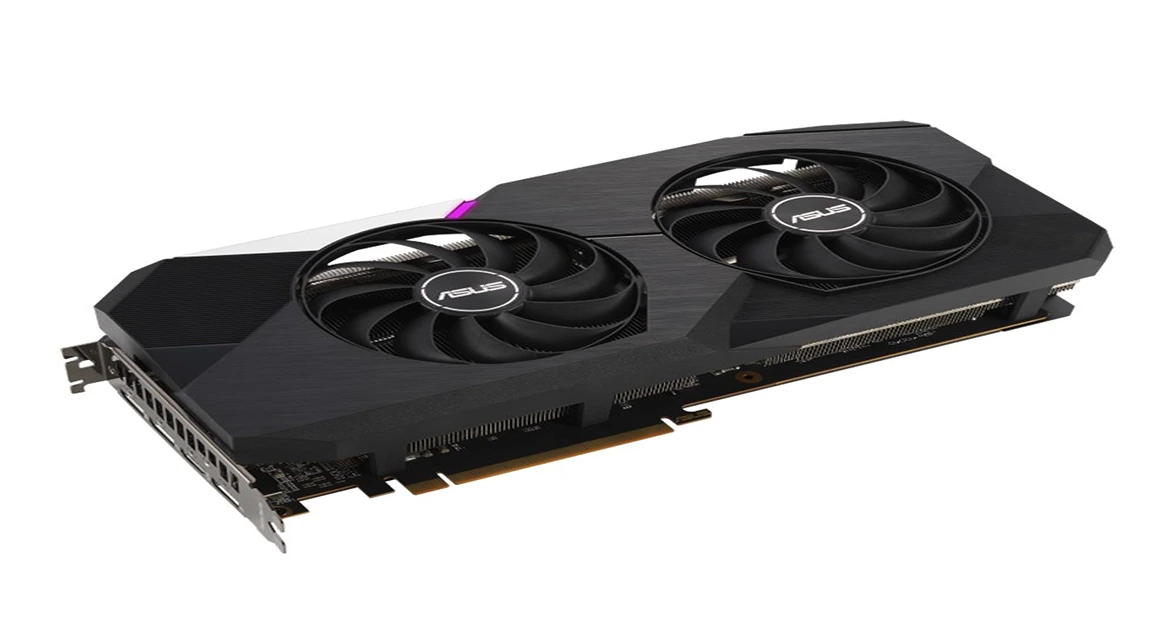
ASUS Graphics Card
RX 6700 XT 1440p