Generally speaking, performance gains usually hidden in driver menus and game settings, not in the checkout page for a new graphics card. Those controls sit behind small buttons and nested tabs that most players rush past on the way to “Ultra” presets and whatever new acronym appears in the patch notes. That shortcut feels efficient in the moment, yet it often leaves a capable GPU running under a layer of conflicting filters, half‑enabled features, and default choices that were never tailored to the system in front of the screen.
Why midrange GPUs feel weaker than they are
Most gaming PCs with a few years on them sit in a comfort zone where the graphics card is perfectly capable of pushing smooth 1080p or very playable 1440p. The trouble usually starts when those systems juggle multiple layers of scaling, sharpening, and sync logic that were never meant to run together. A player toggles every new acronym they see, then wonders why their aim feels sticky and their frames stutter even at “high” or “medium” presets.
From a calm, practical perspective, the story usually sounds the same: the graphics card has enough horsepower, but the configuration works against it. When frame generation, upscalers, in‑engine motion blur, and driver‑level filters all overlap, the GPU spends more time solving conflicts than drawing clean frames. Hidden GPU tweaks that can quietly improve your graphic card performance sit in those menus, waiting for someone to turn off the noise and let a clear chain of settings do the work.
The midrange gaming PC that deserves better
Picture a tower under a desk with a sensible midrange card inside, a fast enough processor, and a 1080p or 1440p monitor on the desk. That box is not a museum piece; it is a live system that can still deliver sharp, responsive games when configuration lines up with reality instead of ego. Instead of a wall of sliders and unchecked options, it needs a focused pass that treats the GPU as a partner instead of a scapegoat.
The owner of that PC often lives with compromises that are more psychological than technical. A new release drops, the default preset disappoints, and a sense of falling behind sets in even though the card sits well above the recommended box on the spec sheet. A calm mentor approach starts by validating the frustration, then turning attention away from “I need a new card” toward “these existing features have never been set up correctly.” For players who recognize that pattern and want to see the same ideas applied to a specific NVIDIA build, a separate RTX 3060 Ti guide shows how midrange hardware responds once those hidden tweaks get real attention.
How driver defaults quietly sabotage performance
Graphics software ships with default profiles designed to avoid support calls, not to get the most out of a gaming PC. Control panels and companion apps often enable “optimize” buttons that override game choices in ways that sound helpful on paper and disruptive in play. A driver might force anisotropic filtering, apply global sharpening, or manage sync behavior in ways that double up with in‑engine options. The player then pushes their preset higher, chasing clarity through a fog of redundant processing.
This kind of silent interference matters most when the GPU sits in a tier that can already handle the chosen resolution with modest headroom. On those systems, any wasted work shows up as inconsistent frame pacing, elevated latency, or a visual harshness that looks like low bitrate streaming video. A careful reset to neutral global driver settings, with tweaks applied per game instead of globally, often delivers a smoother experience than any “one size fits all” optimization button ever could. Hidden GPU tweaks that can quietly improve your graphic card performance usually start with that reset and then bring back only the options that earn their keep.
Upscalers, scaling chains, and the blurry mess
Modern games rely heavily on upscaling to hit higher resolutions at comfortable frame rates, especially on midrange cards. Trouble appears when multiple scaling stages stack: game engines render at one internal resolution, upscalers like DLSS or FSR sit on top, and the GPU or display then rescales again. That chain can introduce softness, shimmering edges, or ghosting, even when each individual feature works well on its own.
A steadier approach picks one authority in the chain instead of three. The internal render resolution and the chosen upscaler mode should be selected together, with any extra scaling modes in drivers or overlays turned off unless there is a very specific reason to keep them. Hidden GPU tweaks that can quietly improve your graphic card performance often boil down to that disciplined choice: trust a single, well‑tuned upscale path, then let the card spend its effort on stable frames instead of contradictory instructions.
Latency features that players never enable
Latency is where modern GPUs hide some of their most helpful tools. Both major ecosystems ship with low‑latency options that measure and trim the delay between mouse movement and visible action on screen. These features sit off by default in many titles or hide behind toggles that sound experimental even though they have matured into everyday tools. Players who never explore that part of the settings menu end up with a snappier card on paper than they experience in practice.
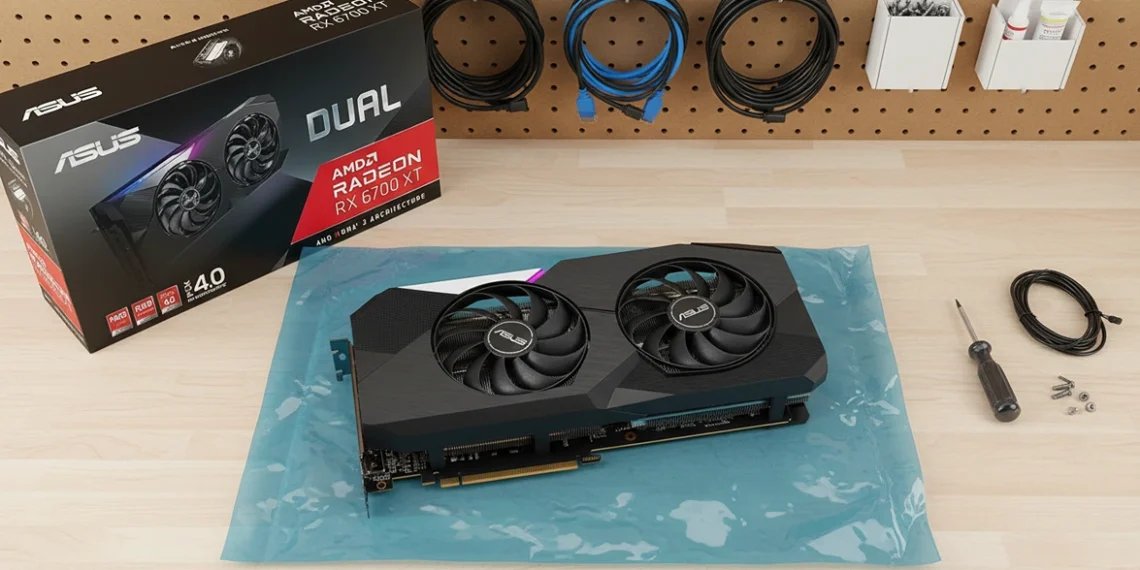
Turning on a well‑implemented low‑latency mode on a midrange system often feels like a hardware upgrade, especially in shooters and fast‑paced competitive games. The card does not magically gain raw throughput, but the feedback loop between input and image tightens in a way that restores confidence. For readers who prefer to see that change mapped onto an AMD‑based build, a dedicated Radeon RX 6700 XT walkthrough follows the same latency decisions step by step and shows how they feel on a popular midrange configuration.
Power profiles and why “balanced” is not always friendly
Operating systems and GPU software also control how aggressively a card can draw power under load. A gaming PC that spends most of its life browsing and streaming might sit in a “balanced” system mode that quietly holds clocks below what games expect. In that state, the GPU never stretches to its designed performance level, yet it still produces enough heat and noise to feel under strain, feeding the impression that it has aged out of modern workloads.
Switching to an appropriate high‑performance power profile for gaming sessions lets the card ramp consistently when frames demand it. This does not mean pushing hardware to unsustainable thermals; it simply means allowing it to run in the envelope it was built for instead of throttling itself in the name of desk‑bound efficiency. Hidden GPU tweaks that can quietly improve your graphic card performance often take advantage of these modes, pairing them with sensible fan curves and case airflow so the only noticeable change is more stable frame delivery.
Image filters, sharpening, and visual fatigue
Image‑quality sliders can turn a clear picture into a noisy one in seconds when they stack improperly. Many players leave driver‑level sharpening enabled, then add in‑game sharpening on top, and perhaps even a post‑processing filter through a third‑party tool. This cocktail can make edges look harsh, textures look over‑etched, and motion more tiring to follow, especially on midrange cards where each extra pass runs very close to the performance budget.
A calmer approach treats sharpening and filters as seasoning, not the main course. One well‑tuned sharpening control, ideally inside the game engine where it can account for the render pipeline, gives far better results than three separate systems trying to “fix” the same frame. Hidden GPU tweaks that can quietly improve your graphic card performance often include turning off more than they turn on, leaving behind a cleaner image that lets the hardware do its best work without sandpapering every pixel.
How to think through tweaks without a checklist
Even without formal, step‑by‑step instructions, it helps to adopt a mindset that treats each group of settings as a linked system. Resolution and upscaling options belong together and should be adjusted in light of each other. Latency options, sync settings, and frame caps form another cluster that needs coherent choices instead of random toggles. Power and thermal behavior form a third group that affects the stability of everything stacked above it.
Looking at the controls this way turns an overwhelming wall of switches into a handful of small conversations with the PC. The process becomes less about memorizing somebody else’s preset and more about understanding what each group should accomplish for the way a particular person plays. Hidden GPU tweaks that can quietly improve your graphic card performance then reveal themselves as context‑sensitive decisions, not magic incantations, and that perspective holds up whether the card inside the case carries a green logo, a red one, or something older.
Where visual data helps make the point
Numbers can calm doubt when a player feels skeptical about “just changing settings.” Bar‑style performance charts that show before‑and‑after results for a single midrange GPU at a fixed resolution provide an at‑a‑glance confirmation that careful tuning matters. These visuals do not need to chase lab‑grade precision; they simply need to demonstrate that consistent, repeatable gains come from a smarter configuration across a few representative games.
Placing a visual snapshot of how frame rate and frame‑time stability change after a tuning session makes the effort feel less abstract. It also gives those who like to experiment a baseline to compare against their own results and see whether their own system behaves similarly. Hidden GPU tweaks that can quietly improve your graphic card performance become easier to trust when a reader sees that one card can behave like two different machines depending on how its software is set up.
Strategic places to reference specific hardware
Even in a piece that centers on concepts instead of products, there are moments where a concrete example helps guidance land. Referring to a common midrange GPU as an illustration of the kind of hardware that benefits from these tweaks grounds the discussion in familiar reality. Those mentions can then quietly connect to more product‑specific content, using short, bold anchors embedded in relevant sentences instead of obvious promotional banners.
A reader who recognizes their own hardware in one of those examples can peel off into a focused tuning path without losing the thread of the main argument. That might mean following a detailed midrange NVIDIA path through an RTX 3060 Ti piece or exploring a parallel AMD‑focused route that treats Radeon RX 6700 XT as its reference. In both cases, the hybrid structure keeps this content centered on hidden settings while the linked guides carry the model‑specific deep dives.
When tweaks are not enough anymore
Even the most careful configuration eventually runs into real limits. Newer games that target higher‑end hardware, higher‑resolution monitors that demand more throughput, or creative workflows that lean heavily on GPU acceleration can all move the goalposts. At that point, keeping a midrange card tuned well buys time, but it no longer closes the gap completely between expectations and experience.
The key is to treat that moment as the honest end of a fair tuning journey, not the start of a blame cycle. When hidden GPU tweaks that can quietly improve your graphic card performance no longer deliver acceptable results in the specific games or tools that matter most, the argument for new hardware becomes grounded instead of impulsive. For anyone standing at that crossroads, it makes sense to step from this configuration‑first perspective into more product‑driven guidance, whether that means refining expectations with an RTX 3060 Ti‑centered tuning story or choosing a different upgrade path anchored on Radeon RX 6700 XT as the next step.